
Need to set up email in Classic Outlook? This guide covers the manual IMAP and SMTP settings needed to connect your WebPanda email account to Classic Microsoft Outlook on Windows 11. You can watch the video below or follow the written steps.
1. Open Classic Outlook and add your account
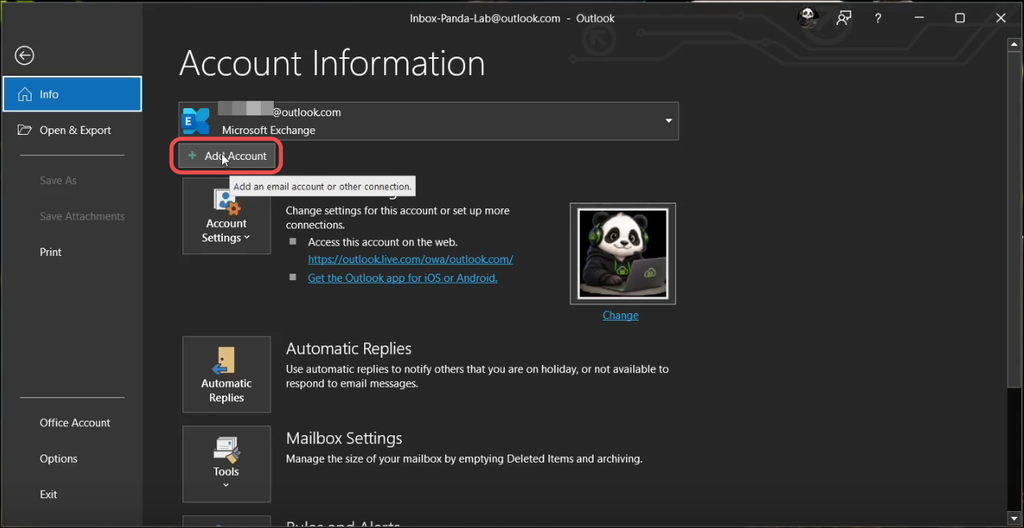
Open Classic Microsoft Outlook, click File, then click Add Account.
2. Enter your WebPanda email address
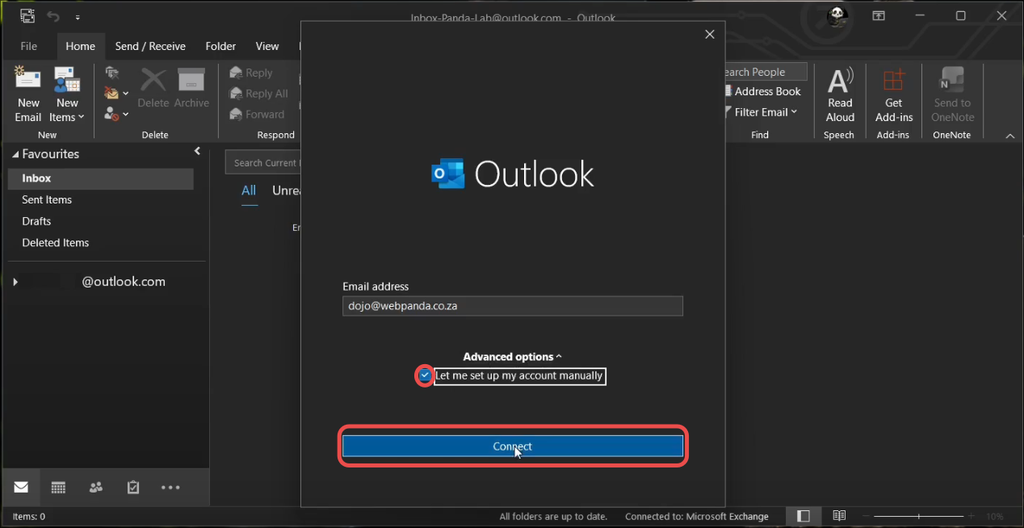
Enter your full WebPanda email address. Expand Advanced options, select Let me set up my account manually, then click Connect.
3. Choose IMAP
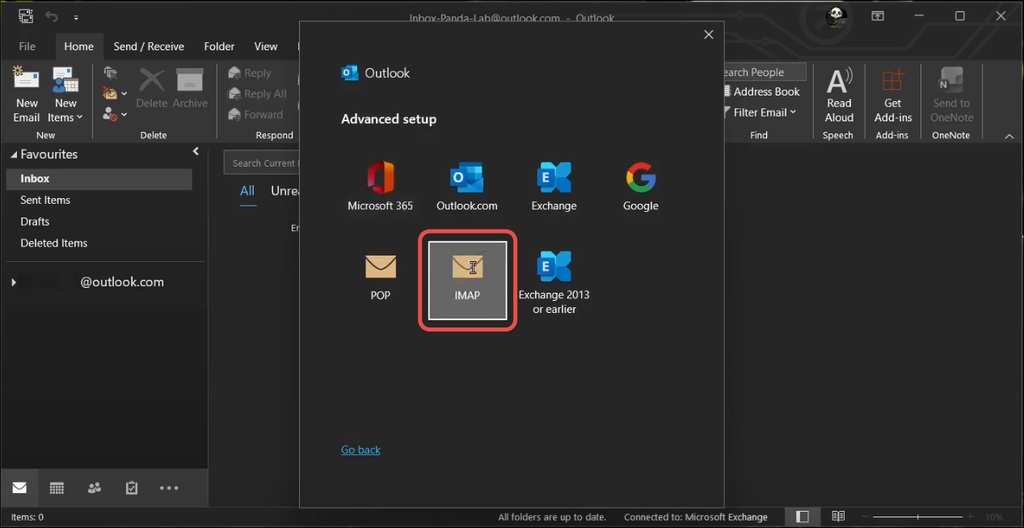
On the Advanced setup screen, select IMAP as the account type.
4. Enter the incoming and outgoing mail settings
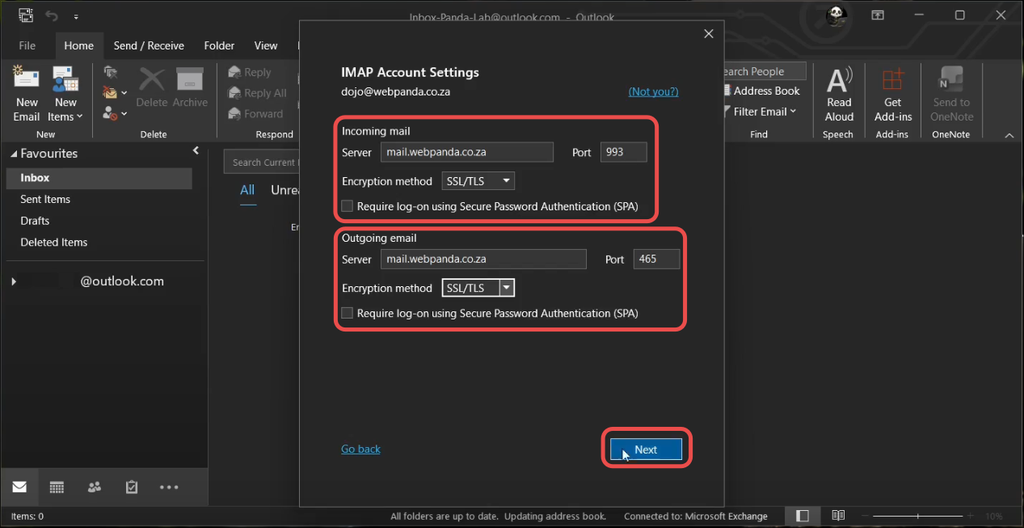
Under Incoming mail, enter:
Server: mail.yourdomain.co.za
Port: 993
Encryption method: SSL/TLS
Leave Require log-on using Secure Password Authentication (SPA) unticked.
Under Outgoing mail, enter:
Server: mail.yourdomain.co.za
Port: 465
Encryption method: SSL/TLS
Again, leave Require log-on using Secure Password Authentication (SPA) unticked.
Replace yourdomain.co.za with your own domain name. If WebPanda supplied different mail settings, always use the settings provided to you.
5. Enter your password and connect
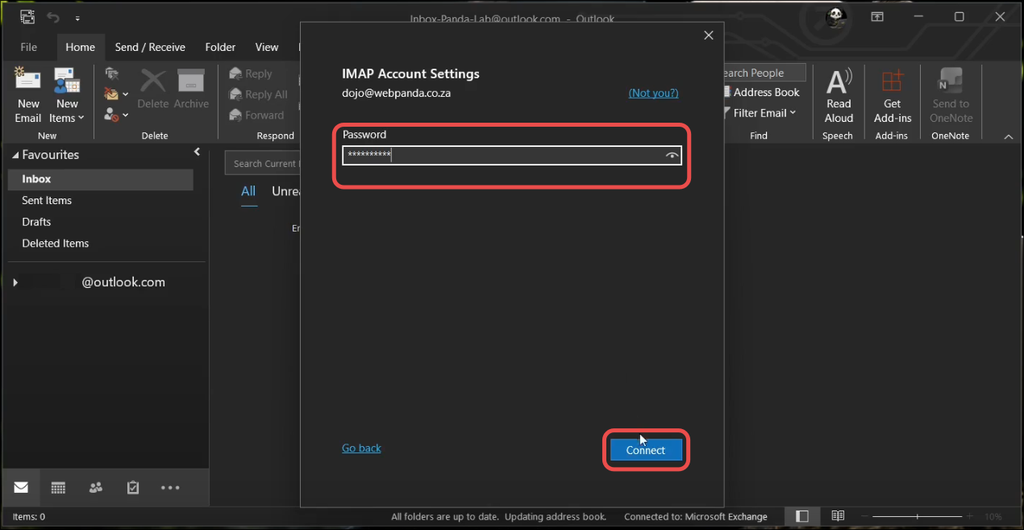
Enter the password for your WebPanda email account, then click Connect.
Outlook will configure the account and check the connection.
6. Finish setting up the account
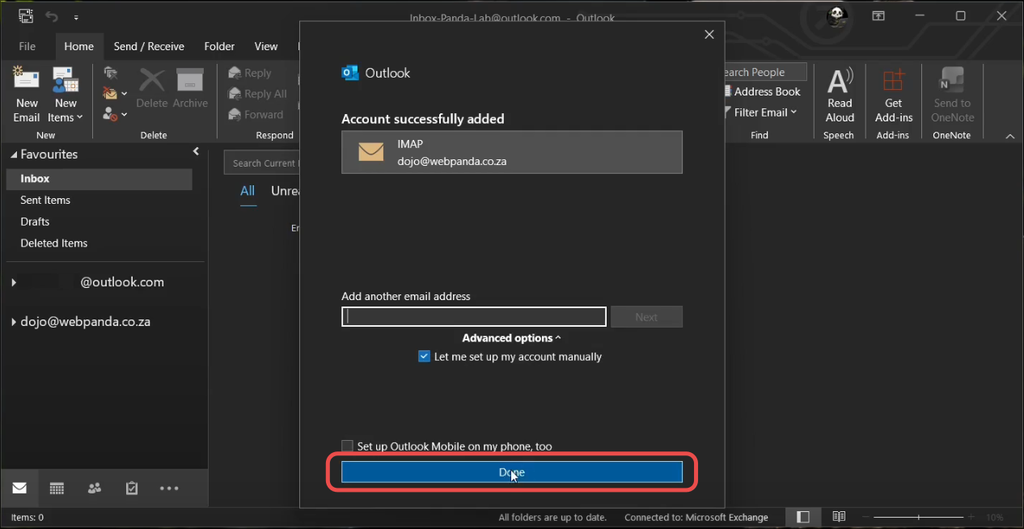
Once Outlook has successfully added the account, you’ll see an Account successfully added confirmation.
Click Done to finish the setup.
Your WebPanda email account is now ready to use in Classic Microsoft Outlook.
Your WebPanda email is ready
Your WebPanda email account should now be available in Classic Microsoft Outlook. Send yourself a quick test email to confirm that both sending and receiving are working correctly.